RazorSQL Overview
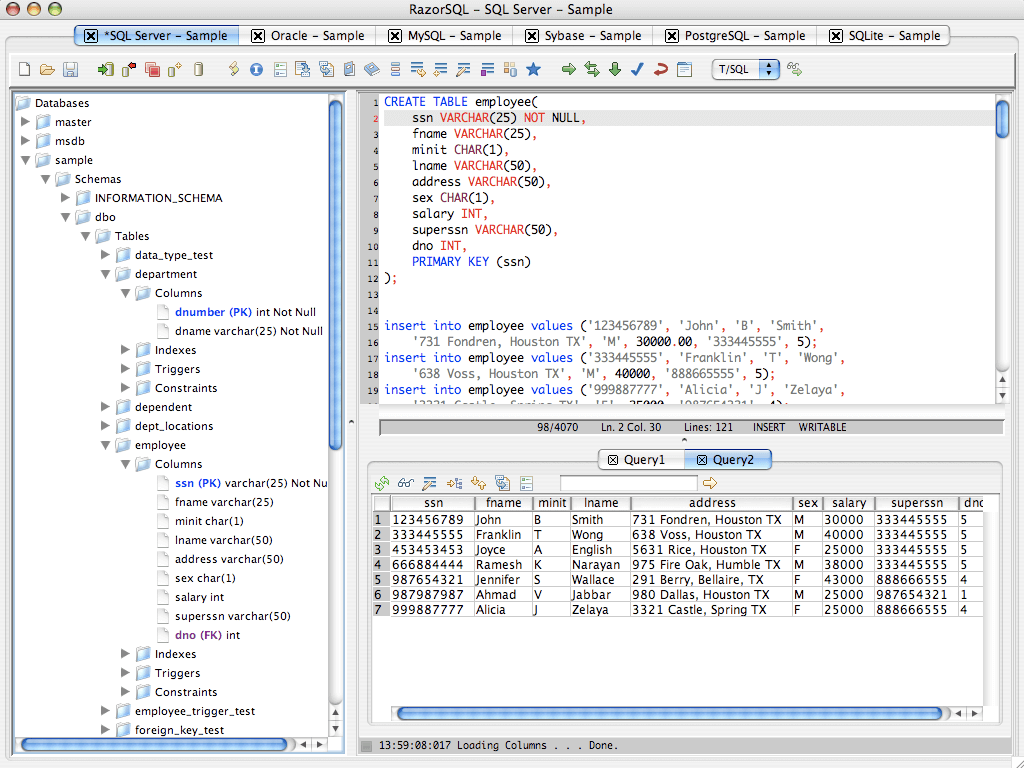
RazorSQL for Mac is a desktop SQL client that lets you query, edit, browse, and manage nearly every major database from a single application. It combines a SQL editor, database navigator, query builder, and a built-in relational database engine that needs zero configuration to get started. Developed by Richardson Software, it supports over 30 database types out of the box, from Oracle and PostgreSQL to newer additions like DuckDB and Databricks. The current release, version 11.0.2, runs as a native build on both Apple Silicon and Intel Macs.
Why Choose RazorSQL
Most Mac database tools lock you into one or two database engines, forcing a switch to a different app the moment a project touches something else. RazorSQL takes the opposite approach, shipping with built-in driver support for more than 30 database types, so the same interface works whether you're on MySQL, Snowflake, MongoDB, or a local SQLite file. That breadth matters most on Mac, where dedicated native GUI options for less common databases like Cassandra or DynamoDB are genuinely hard to find.
The other differentiator is how deeply RazorSQL adapted itself to macOS rather than porting a generic cross-platform shell. It auto-detects system dark mode, uses native file dialogs that match your appearance setting, and ships separate optimized builds for Apple Silicon and Intel rather than relying on Rosetta for everyone. Recent versions also added specific fixes for multi-monitor setups and external display switching on Mac, addressing quirks that competitor listings rarely mention.
Key Features
- Built-in driver support for 30+ databases, including Oracle, MySQL, PostgreSQL, SQL Server, and Snowflake
- Zero-configuration built-in relational database engine
- Visual query builder alongside a full SQL editor with syntax highlighting
- Database navigator for browsing tables, views, procedures, and triggers
- Import and export tools supporting CSV, Excel, JSON, and delimited formats
- Database conversion tool for migrating schemas and data between engines
- Data Dictionary generator for exporting table and view documentation to CSV
- Command Line Call Generator for scripting and scheduled database tasks
- SSH tunnel and SSL connection support for secure remote database access
- Compare tool for diffing table structures or query result sets
What's New in 11.0.2 Version
Version 11.0.2 is a focused bug-fix release that builds on the larger 11.0.0 update.
- Pre-populates the Find All Rows search field with the current query results search value
- Fixed a PostgreSQL Keep Alive issue where SSL connections wouldn't reconnect automatically
- Corrected an incorrect DuckDB connection help link
- Fixed views not appearing as an option in the DuckDB Data Dictionary tool
- Export Query Results now correctly pulls the date format from the last table export run
- Fixed a login failure affecting Salesforce connections
- The underlying 11.0.0 release it builds on added DuckDB support for Mac, a new Data Dictionary generator, and a redesigned three-panel query results status display.
Supported macOS Versions
RazorSQL ships as separate native builds for Apple Silicon and Intel Macs, so M-series chips run without any Rosetta translation overhead. The Apple Silicon build requires macOS Big Sur or later, while the Intel build covers everything from High Sierra through the latest macOS Tahoe release, giving older Macs a longer support runway than most modern developer tools offer. A separate legacy build still supports Mac OS X 10.8 Mountain Lion through High Sierra for anyone running older hardware that can't take newer macOS updates. For day-to-day use, RazorSQL runs comfortably on modest hardware, though working with very large result sets or multiple simultaneous database connections benefits from 8GB of RAM or more.
How to Install RazorSQL on macOS?
Getting RazorSQL running on your Mac takes just a few minutes.
- Click the download button on this page to get the Mac build that matches your chip, Apple Silicon or Intel.
- Open the downloaded .dmg file once it finishes downloading.
- Drag RazorSQL.app into your Applications folder from the window that opens.
- Double-click RazorSQL.app in Applications to launch it for the first time.
- Approve any macOS security prompts asking to confirm the app is safe to open.
- Start using the 30-day full-feature trial, or enter a license key if you've already purchased one.
- You're ready to connect to your first database and start running queries.
How to Use RazorSQL Mac?
- Once RazorSQL is open, connecting to a database and running your first query takes just a few steps.
- Click Connections, then choose Add Connection to open the Connection Wizard.
- Select your database type from the list, such as MySQL, PostgreSQL, or SQLite.
- Enter your host, port, username, and password, or point to a local database file.
- Click Connect, and the database navigator populates with your tables, views, and procedures.
- Open the SQL Editor tab and write a query, using auto-completion for table and column names.
- Press Execute to run the query and view results in the multi-tab query results panel.
Final Verdict
RazorSQL for Mac earns its price tag if you regularly work across more than one type of database, since few Mac-native tools match its driver coverage in a single app. It's not the most modern-looking SQL client on the market, but its native Apple Silicon build, deep macOS integration, and steady release cadence make it a dependable daily driver for developers and database administrators. For anyone working with a single, simple database, a free alternative might cover the basics just as well, but RazorSQL's breadth is hard to beat once your needs grow.
Download RazorSQL for Mac
Ready to manage all your databases from one Mac app? Grab the latest build right here and start your 30-day free trial today.